Showing posts with label IT. Show all posts

Saturday, May 7, 2011

Download And Backup Your Facebook Profile Data ( Photos, Videos, Messages,.... )


Are you thinking to close your Facebook account? If yes I'm sure you don't want to lose all your data including your photos,videos,your messages..etc, or What if your Facebook account was suddenly disabled? You will loose your all information in your Facebook account. Don't worry.
There is a simple way to backup your facebook data. In this way, Facebook provides you a zip file to download, which includes following data.

* Your profile information. (e.g., your contact information, interests, groups)
* Photos and videos that you have uploaded to your account.
* Notes you have created.
* Your sent and received messages.
* Events to which you have RSVP'd.
* Your comments, that you and your friends have made on your wall posts, photos, and other profile content.
* Your friend list.
* Your wall posts and content that you and your friends have posted to your profile.

Method to backup facebook data.

Step 1: Log into your Facebook account and visit your account settings page.

Step 2: Click on learn more beside Download your information.


Step 3: A new page appears with the following message:

This tool lets you download a copy of your information, including your photos and videos, posts on your Wall, all of your messages, your friend list and other content you have shared on your profile. Within this zip file you will have access to your data in a simple, browseable manner. Learn more about downloading a copy of your information.

Security
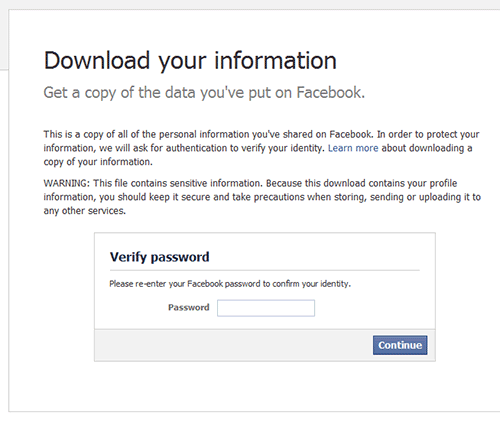
This is a copy of all of the personal information you’ve shared on Facebook. In order to protect your information, we will ask for authentication to verify your identity.
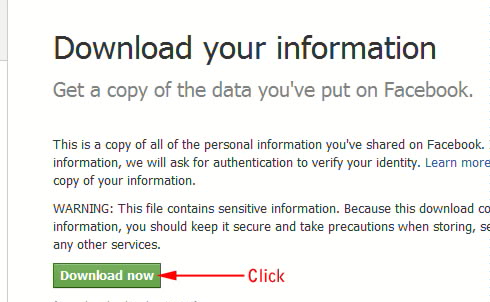
WARNING: This file contains sensitive information. Because this download contains your profile information, you should keep it secure and take precautions when storing, sending or uploading it to any other services.


Then Click on Download.

Step 4: When you click on download,a small window appears. Click on the new Download button.


Step 5: A download link will be sent to your email. As Facebook says, it can take a while so be patient.

Step 6: Click on the email link. Then you’ll be directed back to Facebook. The site will ask for your account password, for security’s sake. Once you enter it, you’ll return to the Download page.


Step 7: Click Download Now to get a zip file containing your profile information, wall posts, and uploaded pictures and videos.


That's it. You got your facebook information as a zip file.

************************************************************************************************************
www.hotncoolmails.blogspot.com~ backup facebook data,backup facebook information,download fb data,dawnload fb information include photos,videos,friend list, messeges,download my fb inbox,photos,videos,backup and achieve facebook data,method,steps to download facebook data,how to download fb profile data,information,how to backup fb profile

Friday, May 6, 2011

Mobitel 4G - 96Mbps Download Speed


Sri Lanka Telecom Mobitel announced today(06/05/2011) that it has carried out a successful trial of LTE (Long Term Evolution) Technology achieving speeds of up to 96 Mbps. At this LTE trial Mobitel has broken the speed barrier even further to demonstrate broadband speeds of up to 96Mbps in downlink and 49Mbps in uplink using LTE technology.
The Director General of Telecommunications(TRCSL) Mr.Anusha Palpita witnesses Mobitel demonstrating 4G(LTE) technology exceeding 96Mbps data download speed and 49Mbps in upload speed 1st in south Asia at Mobitel flagship center.

Reason to this speed in LTE
The prime factor behind thise super-fast speeds demonstrated in LTE technology when compared to existing and most advanced 3G technologies is that the spectral efficiency is 4 to 5 times greater in LTE than in the most advanced 3G technologies. The use of OFDM (Orthogonal Frequency Division Multiplexing) carrier modulation in LTE allows easy upward scalability for higher bandwidth requirements, coupled with MIMO technology, which effectively uses multiple antennae in both the Terminal Device (Data dongle, Tablet PC/Smart Phone etc.) and radio network to transmit and receive multiple streams of information within the same spectrum. The demonstration was carried out in the 2.6GHz frequency range, and initiatives are under way to explore operations at other spectrum bands for commercial deployment.

************************************************************************************************************
hotncoolmails.blogspot.com~ Mobitel 4G,4g in sri lanka,4g,96Mbps download speed, Mobitel demonstrating 4G(LTE),lte,4g sri lanka mobitel 96Mbps data download speed,49Mbps upload speed,LTE,4G mobitel,sri lanka Telecom Mobitel 4G,LTE trail

Monday, April 25, 2011

Google Android on Nokia

After making Nokia 5800 looks like iPhone, MMMOOO, the known name for Mobile applications has done something cool again. It's called M1. M1 let you enjoy Google Android on Symbian.


What is the ANDROID?

Android is a software platform for mobile devices, powered by the Linux kernel, initially developed by Google.

The M1 application is going to release on 18 June

M1 is a flash application that gives you Android experience in your Nokia 5800 XpressMusic. You can watch this video to know more about M1.


~ Google Android on Nokia,Android experience in your Nokia 5800 XpressMusic,M1,MMMOOO,Android on symbian phones,google android

Wednesday, April 20, 2011

BlackBerry PlayBook

BlackBerry PlayBook Released today(19/04/2011) in US, Canada

Features

Operating system:-
BlackBerry Tablet OS
Power:-
5300 mAh
CPU:-
1 GHz Cortex-A9 dual-core processor
Storage capacity:-
16, 32 or 64 GB Flash
Memory:-
1 GB RAM
Display:-
7" LCD display 16:9 aspect ratio
Resolution:-
1024 x 600 px (WSVGA)
(1080p HDMI output) Graphics PowerVR SGX540
Input:-
Capacitive, Multi-touch, Touch Screen, GPS, Orientation Sensor (Accelerometer), 6-Axis Motion Sensor (Gyroscope), Digital Compass (Magnetometer)
Camera:-
Dual 1080p HD cameras (3 MP front facing, 5 MP rear facing)
Connectivity:-
Wi-Fi (802.11a/b/g/n), Bluetooth 2.1 + EDR Online services 7digital & BlackBerry App World Dimensions 5.1" x 7.6" x 0.4" (130mm x 194mm x 10mm) Weight 0.9lbs (425g)
Price
16 GB :-US$500
32 GB :- US$600
64 GB :- US$700

BlackBerry PlayBook Photos


~ BlackBerry PlayBook,BlackBerry PlayBook features,BlackBerry PlayBook photos,images,pictures,pics,BlackBerry,PlayBook,BlackBerry PlayBook price

Sunday, April 17, 2011

Kaspersky Keys

Update Kaspersky licence key as following.


This file has following Kaspersky Keys
*Kaspersky Anti-Virus 7
*Kaspersky Anti-Virus 8
*Kaspersky Anti-Virus 9
*Kaspersky Anti-Virus 2010
*Kaspersky Anti-Virus 2011

*Kaspersky Internet Security 7
*Kaspersky Internet Security 8
*Kaspersky Internet Security 9
*Kaspersky Internet Security 2010
*Kaspersky Internet Security 2011


Download link :-
http://fileserve.com/file/mTRPBrS


Kaspersky Key,free Kaspersky Key,Working free Kaspersky Key,Kaspersky Key 2011,free download working Kaspersky Key 2011,updating method kaspersky key,kis key,kaspersky licence key, kis licence key 2011 working,Kaspersky Anti-Virus 7,8,9,2010,2011 licence key,Kaspersky Internet Security 7
8,9,2010,2011 licence key

Sunday, April 10, 2011

Find Your Nokia Phone's Country Of Origin Using IMEI

Click here to find Your Nokia mobile phone's country of origin

~ Find Your Nokia Phone's Country Of Origin Using IMEI
,Nokia,IMEI,nokia original,nokia original mobile phones, find your mobile is original or not

Friday, April 1, 2011

Lets Bug The Google

Who's the cutest? I'm feeling lucky - The phrase become popular and goes viral as Google now become the "magic mirror" and answered the famous question. That's right, Google can now answers who's the cutest.

If you're curious about who's the cutest, here's how to do it:

Go to Google homepage and type 'who's the cutest' on the search box. Then press the 'I'm feeling lucky' button.

Another tricks on Google search

Google gravity

Type on the google search box “google gravity” and press the “I’m feeling lucky” button. The new page will appear, just wait a couple seconds and you will see all of the google letters will fall down.

Google sphere

Type on the google search box “google sphere” and press the “I’m feeling lucky” button. The new page will appear, just wait a couple seconds and you will see google and all the letters will collapse and flying.

Epic Google

Type on the google search box “google epic” and press the “I’m feeling lucky” button. Wait for a couple seconds and you’ll see the Google title and all the letters will slowly get wider and bigger.

Annoying Google

Type on the google search box “annoying google” and press the “I’m feeling lucky” button. You’ll see another alternative Google homepage.

Google reverse/mirror

Type on the google search box “google reverse” or “elgoog” and press the “I’m feeling lucky” button. The new page will appear, just wait a couple seconds and you will see a reverse (mirror) google where all the letters become reverse or will only can read if mirrored.

Rainbow google

Type on the google search box “google rainbow” and press the “I’m feeling lucky” button. You’ll see the letters on the page are colorful like Christmas light and will always change frequently.

Google loco

Type on the google search box “google loco” and press the “I’m feeling lucky” button. You’ll see another alternative Google pages where the Google title become “Google Loco” and every letter will jumping.

Google game

To play the game, you must have the latest Flash Player installed in your browser.

Google pacman

Type on the google search box “google pacman” and press the “I’m feeling lucky” button. You’ll see google home page with pacman themes and you can play the game also.

Google Easter Eegs

Type on the google search box “google easter eegs” and press the “I’m feeling lucky” button. You’ll see google homepage with easter themes and you can play the “bunny easter eggs”.


~ Who's the cutest? I'm feeling lucky,magic mirror,google gravity,google sphere,epic google,annoying google,google reverse,magic mirror,rainbow google,google loco,google game,google pacman,google easter Eegs,bug google

Gmail Motion - A new way to communicate


The mouse and keyboard were invented before the Internet even existed. Since then, countless technological advancements have allowed for much more efficient human computer interaction. Why then do we continue to use outdated technology? Introducing Gmail Motion -- now you can control Gmail with your body.

Try it your self http://gmail.com/motion

How it works

Gmail Motion uses your computer's built-in webcam and Google's patented spatial tracking technology to detect your movements and translate them into meaningful characters and commands. Movements are designed to be simple and intuitive for people of all skill levels.


Motion Guide

Familiarize yourself with some of the basic functionality of Gmail Motion using this printable guide of sample gestures. With it, you'll be able to start writing and responding to emails – with your body – in no time.


** It's another April Fools day's joke from the Google

~Gmail Motion,A new way to communicate ,april fools day,2011,jokes,google

Thursday, March 24, 2011

General Keyboard Shortcuts

CTRL+C (Copy)
CTRL+X (Cut)
CTRL+V (Paste)
CTRL+Z (Undo)
DELETE (Delete)
SHIFT+DELETE (Delete the selected item permanently without placing the item in the Recycle Bin)
CTRL while dragging an item (Copy the selected item)
CTRL+SHIFT while dragging an item (Create a shortcut to the selected item)
F2 key (Rename the selected item)
CTRL+RIGHT ARROW (Move the insertion point to the beginning of the next word)
CTRL+LEFT ARROW (Move the insertion point to the beginning of the previous word)
CTRL+DOWN ARROW (Move the insertion point to the beginning of the next paragraph)
CTRL+UP ARROW (Move the insertion point to the beginning of the previous paragraph)
CTRL+SHIFT with any of the arrow keys (Highlight a block of text)
SHIFT with any of the arrow keys (Select more than one item in a window or on the desktop, or select text in a document)
CTRL+A (Select all)
F3 key (Search for a file or a folder)
ALT+ENTER (View the properties for the selected item)
ALT+F4 (Close the active item, or quit the active program)
ALT+ENTER (Display the properties of the selected object)
ALT+SPACEBAR (Open the shortcut menu for the active window)
CTRL+F4 (Close the active document in programs that enable you to have multiple documents open simultaneously)
ALT+TAB (Switch between the open items)
ALT+ESC (Cycle through items in the order that they had been opened)
F6 key (Cycle through the screen elements in a window or on the desktop)
F4 key (Display the Address bar list in My Computer or Windows Explorer)
SHIFT+F10 (Display the shortcut menu for the selected item)
ALT+SPACEBAR (Display the System menu for the active window)
CTRL+ESC (Display the Start menu)
ALT+Underlined letter in a menu name (Display the corresponding menu)
Underlined letter in a command name on an open menu (Perform the corresponding command)
F10 key (Activate the menu bar in the active program)
RIGHT ARROW (Open the next menu to the right, or open a submenu)
LEFT ARROW (Open the next menu to the left, or close a submenu)
F5 key (Update the active window)
BACKSPACE (View the folder one level up in My Computer or Windows Explorer)
ESC (Cancel the current task)
SHIFT when you insert a CD-ROM into the CD-ROM drive (Prevent the CD-ROM from automatically playing)
Dialog Box Keyboard Shortcuts
CTRL+TAB (Move forward through the tabs)
CTRL+SHIFT+TAB (Move backward through the tabs)
TAB (Move forward through the options)
SHIFT+TAB (Move backward through the options)
ALT+Underlined letter (Perform the corresponding command or select the corresponding option)
ENTER (Perform the command for the active option or button)
SPACEBAR (Select or clear the check box if the active option is a check box)
Arrow keys (Select a button if the active option is a group of option buttons)
F1 key (Display Help)
F4 key (Display the items in the active list)
BACKSPACE (Open a folder one level up if a folder is selected in the Save As or Open dialog box)
Microsoft Natural Keyboard Shortcuts
Windows Logo (Display or hide the Start menu)
Windows Logo+BREAK (Display the System Properties dialog box)
Windows Logo+D (Display the desktop)
Windows Logo+M (Minimize all of the windows)
Windows Logo+SHIFT+M (Restore the minimized windows)
Windows Logo+E (Open My Computer)
Windows Logo+F (Search for a file or a folder)
CTRL+Windows Logo+F (Search for computers)
Windows Logo+F1 (Display Windows Help)
Windows Logo+ L (Lock the keyboard)
Windows Logo+R (Open the Run dialog box)
Windows Logo+U (Open Utility Manager)
Accessibility Keyboard Shortcuts
Right SHIFT for eight seconds (Switch FilterKeys either on or off)
Left ALT+left SHIFT+PRINT SCREEN (Switch High Contrast either on or off)
Left ALT+left SHIFT+NUM LOCK (Switch the MouseKeys either on or off)
SHIFT five times (Switch the StickyKeys either on or off)
NUM LOCK for five seconds (Switch the ToggleKeys either on or off)
Windows Logo +U (Open Utility Manager)
Windows Explorer Keyboard Shortcuts
END (Display the bottom of the active window)
HOME (Display the top of the active window)
NUM LOCK+Asterisk sign ( (Display all of the subfolders that are under the selected folder)
NUM LOCK+Plus sign (+) (Display the contents of the selected folder)
NUM LOCK+Minus sign (-) (Collapse the selected folder)
LEFT ARROW (Collapse the current selection if it is expanded, or select the parent folder)
RIGHT ARROW (Display the current selection if it is collapsed, or select the first subfolder)
Shortcut Keys for Character Map
After you double-click a character on the grid of characters, you can move through the grid by using the keyboard shortcuts:
RIGHT ARROW (Move to the right or to the beginning of the next line)
LEFT ARROW (Move to the left or to the end of the previous line)
UP ARROW (Move up one row)
DOWN ARROW (Move down one row)
PAGE UP (Move up one screen at a time)
PAGE DOWN (Move down one screen at a time)
HOME (Move to the beginning of the line)
END (Move to the end of the line)
CTRL+HOME (Move to the first character)
CTRL+END (Move to the last character)
SPACEBAR (Switch between Enlarged and Normal mode when a character is selected)
Microsoft Management Console (MMC) Main Window Keyboard Shortcuts
CTRL+O (Open a saved console)
CTRL+N (Open a new console)
CTRL+S (Save the open console)
CTRL+M (Add or remove a console item)
CTRL+W (Open a new window)
F5 key (Update the content of all console windows)
ALT+SPACEBAR (Display the MMC window menu)
ALT+F4 (Close the console)
ALT+A (Display the Action menu)
ALT+V (Display the View menu)
ALT+F (Display the File menu)
ALT+O (Display the Favorites menu)
MMC Console Window Keyboard Shortcuts
CTRL+P (Print the current page or active pane)
ALT+Minus sign (-) (Display the window menu for the active console window)
SHIFT+F10 (Display the Action shortcut menu for the selected item)
F1 key (Open the Help topic, if any, for the selected item)
F5 key (Update the content of all console windows)
CTRL+F10 (Maximize the active console window)
CTRL+F5 (Restore the active console window)
ALT+ENTER (Display the Properties dialog box, if any, for the selected item)
F2 key (Rename the selected item)
CTRL+F4 (Close the active console window. When a console has only one console window, this shortcut closes the console)
Remote Desktop Connection Navigation
CTRL+ALT+END (Open the Microsoft Windows NT Security dialog box)
ALT+PAGE UP (Switch between programs from left to right)
ALT+PAGE DOWN (Switch between programs from right to left)
ALT+INSERT (Cycle through the programs in most recently used order)
ALT+HOME (Display the Start menu)
CTRL+ALT+BREAK (Switch the client computer between a window and a full screen)
ALT+DELETE (Display the Windows menu)
CTRL+ALT+Minus sign (-) (Place a snapshot of the active window in the client on the Terminal server clipboard and provide the same functionality as pressing PRINT SCREEN on a local computer.)
CTRL+ALT+Plus sign (+) (Place a snapshot of the entire client window area on the Terminal server clipboard and provide the same functionality as pressing ALT+PRINT SCREEN on a local computer.)
Microsoft Internet Explorer Navigation
CTRL+B (Open the Organize Favorites dialog box)
CTRL+E (Open the Search bar)
CTRL+F (Start the Find utility)
CTRL+H (Open the History bar)
CTRL+I (Open the Favorites bar)
CTRL+L (Open the Open dialog box)
CTRL+N (Start another instance of the browser with the same Web address)
CTRL+O (Open the Open dialog box, the same as CTRL+L)
CTRL+P (Open the Print dialog box)
CTRL+R (Update the current Web page)
CTRL+W (Close the current window)

Monday, March 21, 2011

Windows 8 Release Date

The Windows 8 release date has been shrouded in a cloud of rumors. Most experts expect a late 2011 early 2012 release of the operating system. A recently leaked Windows 8 product cycle chart provides the answers needed to determine the release date of the next Windows OS by Microsoft.


You can take a look at the image here. The chart lists the planning, development and readiness product cycle of Windows 8 and related Microsoft products such as Internet Explorer 8, Windows Live Wave 4, Windows Live Wave 5 and Windows 7. It also lists major events.
Some events and products have already been held / released and it is possible to pinpoint the release date of Windows 8 by making the remaining calculations.
Here is what we know. Forum I and Forum II have been major events, the former held in December 2009, the latter in April 2010. The listing lists four additional event, Forum III to Forum VI. The next two events fall into the development phase of Windows 8, the remaining two into the readiness phase.
Internet Explorer 9 and Windows Live Wave 4 have either been announced with final dates (at least for the beta) or released already.
Forum II was held 4-5 months after Forum I. If we take this approach we can calculate the approximate month of the other four forums. This would mean between 16 to 20 months from April 2010 on which coincides perfectly with the projected late 2011 release date.
The Windows 8 beta should be released around June 2011 and the final release might even hit the stores at the same time that Windows 7 was released, which was October.
The Internet Explorer 9 product cycle confirms the findings. Microsoft has announced a beta release of Internet Explorer 9 for August 2010. This would be the same time that Forum III will be held, which is exactly four months after Forum II.
The chart may be a bit off since Windows Live Wave 4 was released in June. It could be that Microsoft has projected the Forum III conference for June / July instead.
Could also be that the chart is not 100% accurate and it can happen that development cycles need to be shifted, especially if major issues are encountered during development.
Still, we are pretty sure that Microsoft will release the beta of Windows 8 in or around June 2011 and the final release of the operating system in or around October 2011.

Monday, March 14, 2011

Opera Mini: Verification of server certificate failed. Please check the date setting in your device.

Opera Mini: Verification of server certificate failed. Please check the date setting in your device.

Getting this error message on your mobile phone with Opera Mini? " Verification of server certificate failed. Please check the date setting in your device. "

>> Click here to see how to solve this problem.

Opera Mini:Verification of server certificate failed. Please check the date setting in your device,
Opera Mini error,opera mini, verification erore

Sunday, March 13, 2011

Facebook Email Service - Get your FB email ID ( username@facebook.com )

Facebook, as you know the top social networking site has recently introduced its own email service which allow you to send and receive messages using an email address (username@facebook.com). But don't think of it as a regular email service as you will find no usual email elements like subject lines, cc and bcc which you'll find in most of the popular email service providers like Gmail, Yahoo and Hotmail etc… An other interesting concept they are providing is that you can restrict messages from a particular sender with simple setup.

>> How do I get a Facebook Email Address?

It's so simple. As this is a new feature, you need to request for an email address invitation from your facebook page.

1. Login to your Facebook Account

2.Click here ( or visit http://www.facebook.com/about/messages/ ) to Send a request. In the next window,press “Request an Invitation” button.


3. It will take some time to get your account activated. You'll get a message alert once it is accepted.

4.You can then select your Username for your facebook email which will be “Username@facebook.com”

5.Once your Facebook email id is set up, you can share your Facebook email ID with your friends. All email messages from friends will land in messages section of your Facebok account.